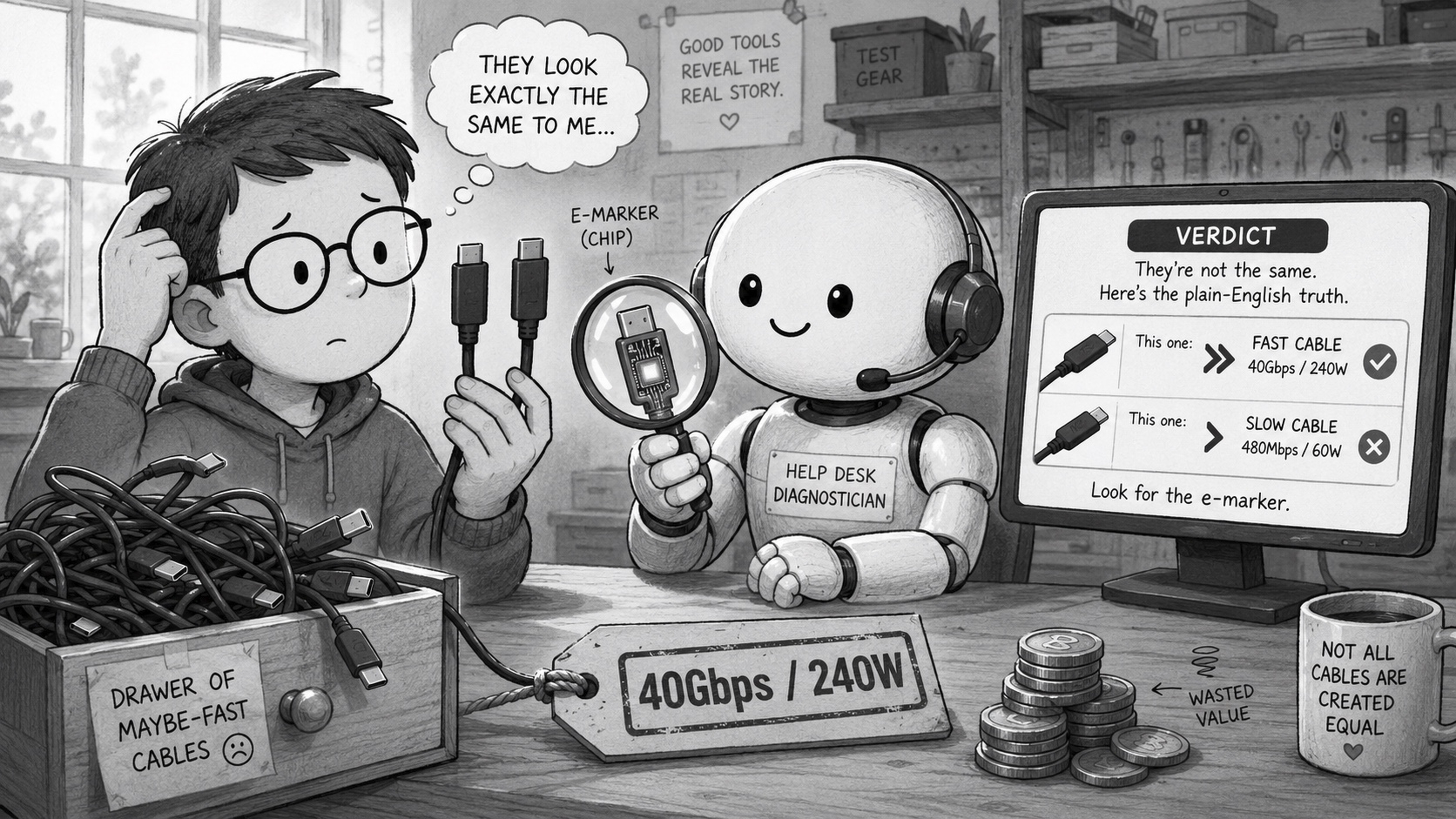
 Open the drawer where you keep your cables. Go on. Somewhere in that tangle are two USB-C cables that look identical, came in similar boxes and feel the same in your hand. One will charge your laptop at full speed and drive a 4K monitor. The other can barely run a mouse.
The connector tells you nothing. That is the whole problem.
USB-C is a shape, not a capability. A cable wearing that oval plug might be a USB 2.0 charging lead doing 480 Mbps and 60W, or it might be a Thunderbolt 4 cable pushing 40 Gbps and 240W. Same socket, wildly different cable. And the day you discover the difference is usually the day your “fast” transfer crawls or your dock refuses to wake the second screen.
I went looking for a way to tell them apart. That hunt is what this post is about.
The names are a deliberate mess
Start with the standards, because the branding is hostile by design.
USB4 is the current baseline worth caring about: 40 Gbps data, up to 100W charging, and it carries video. The newer USB4 version 2.0 doubles that to 80 Gbps. Thunderbolt 4 is Intel’s tighter version of roughly the same thing - guaranteed 40 Gbps, mandatory PCIe tunnelling and enough certified headroom to run dual 4K displays. Thunderbolt 5 lifts the ceiling again to 80 Gbps, 120 Gbps in bursts, and 240W.
The trap is everything below that. “USB 3.2 Gen 2x2” sounds fast and means 20 Gbps. “USB 3.2 Gen 1” is the old 5 Gbps spec wearing a newer name. A cable can legally say “USB-C” and do almost nothing. None of this is printed where you can see it when the cable is plugged in.
What you can actually see
Pick the cable up and look at the moulding near the connector. Certified cables now carry a USB-IF logo that pairs a speed with a power figure - you want to see something like 40Gbps / 240W stamped on it. Under the current rules a cable cannot just claim a speed, it has to declare its wattage too. That combined logo is the single most reliable thing you can read with your eyes.
A lightning bolt with a number next to it (3/4/5) means Thunderbolt, Intel-certified, higher tier. Worth more than the USB logo because the testing is stricter. Choose Thunderbolt 4 in most cases. Few but video pros with top gear will need Thunderbolt 5.
Now the bad news. Plenty of perfectly capable USB4 cables ship with no marking at all. Absence of a logo proves nothing, and a printed claim is only as honest as the factory. Counterfeit cables print whatever they like. So the visible check narrows the field, it does not settle it.
One physical tell that does hold up: length. A passive 40 Gbps cable can only manage that speed up to about 0.8 metres. If a cheap two-metre cable swears it does 40 Gbps passively, be sceptical.
Ask the cable itself
This is where it gets clever. Better USB-C cables contain an e-marker - a tiny chip in the connector that tells your computer, over the CC pins, exactly what the cable can carry: current rating, data speed, vendor, Thunderbolt support. The cable introduces itself. You just need something to listen.
The app that prompted this whole post is WhatCable, and it is worth a clarification up front: it is a Mac app, not Windows. It lives in the macOS menu bar, reads the e-marker and Power Delivery data your Mac already has, and translates it into plain English - which cable, what speed, and crucially whether the cable, the charger or the Mac is the thing throttling you. There is a catch: it needs Apple Silicon. Intel Macs do not expose the data.
You do not strictly need the app, either. macOS already exposes most of this. Hold Option, click the Apple logo top-left, choose System Information and open the USB section. Each device shows its negotiated link speed and the power it has been allocated. (Hat tip to SmartFriend™ Peter Marks for the reminder.)
Here is what that looks like in practice, and it is the whole argument in two screenshots. I plugged the same Samsung T7 Shield SSD - same serial number, same drive - into my MacBook Pro through two different cables. On the good cable it sat on the USB 3.1 bus at 10 Gb/s, drawing 4.48W. On the second cable the identical drive landed on the USB 2.0 bus at 480 Mb/s and just 2.5W. Same socket, same SSD, twenty times slower and starved of power, purely because of the lead. Nothing warned me. The drive just mounted and quietly crawled.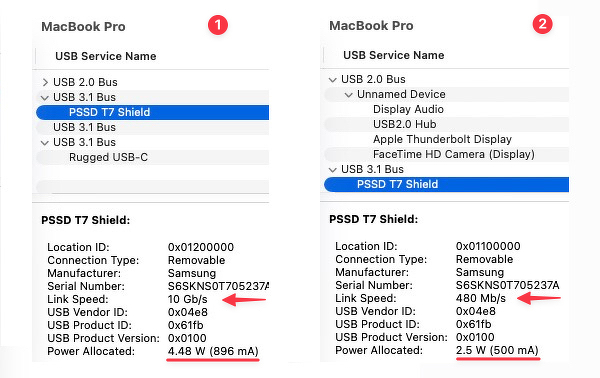
On Windows the closest equivalent is USB Device Tree Viewer, a free utility that lays out every connected device with its negotiated speed and power, so you can see which cable is quietly capping a transfer. It reads what Windows exposes rather than interrogating the e-marker directly, but for “why is this slow” it does the job.
If you want the ground truth, a hardware tester like the POWER-Z KM003C reads the e-marker chip straight off the cable, no operating system in the way. That is the device the cable nerds actually trust but it’s over A$100.
Why bother
Because the wrong cable taxes you twice. Charge speed drops to whatever the weakest link allows, so your laptop sips when it should gulp. And data transfers fall back to the slowest mode both ends can agree on, which on a mislabelled cable can be 480 Mbps when you were promised 40 Gbps. Nothing breaks. It just quietly underperforms, and you blame the laptop.
So here is the move. Bin the mystery cables. Buy USB-IF certified ones with the speed-and-watts logo printed on them or Lightning icon and 4, and label the survivors. Then install something that can read the e-marker, because the connector will never tell you the truth and the print on the side might be lying.
Sources:
- WhatCable - know what your USB-C cable can really do
- USB Device Tree Viewer (uwe-sieber.de)
- USB4 vs Thunderbolt 4: rules, guarantees and cable certs (plugable.com)
- USB cable markings explained (wjwsy.com)
- ChargerLAB POWER-Z KM003C USB-C tester (amazon.com.au)
- USB confusion: cables with USB4 v2.0 and Thunderbolt 5 logos (heise.de)